Introduction
Most marketing managers spend their days inside GA4 looking at sessions, key events, and channel breakdowns. Ask how Google Tag Manager works, or what happens between a visitor clicking a link and that session appearing in a report, and the answer usually stops at “the tag fires.”
That gap causes practical problems. When a page view goes unrecorded, when a button click fails to produce the event a campaign depends on, when attribution credits the wrong channel, the cause almost always sits somewhere in the chain between the visitor’s browser and your GA4 property. Teams who know that chain can diagnose their own data. Teams who don’t have to open a ticket and wait for someone else to look at it.
This post follows a visitor through a site and describes what happens in the browser, in Google Tag Manager, and in GA4 at each step, in the order it happens. The first three parts cover landing on a page, clicking something, and moving to another page. The fourth follows the data past GA4 into Google Ads and Search Console.
Two companion documents go with it. Analytics Implementation Workflow is the nine-step process for building and maintaining a setup like this. Analytics Glossary defines every term used here.
Everything here describes a standard client-side GTM installation feeding a GA4 web data stream. You don’t need to write code to follow it. If you know what GTM is and you have opened a GA4 report, you have enough background.
One note on vocabulary before we start. GA4 now calls conversions “key events.” Google Ads still reports conversions, and older documentation and blog posts use the older word. Both describe the same thing: a measured action that matters to the business. This post uses the current term.
Part 1: What Happens When a Visitor Lands on Your Site
Every number in GA4 originates in this sequence. Before anyone analyzes traffic, optimizes a campaign, or assigns credit to a channel, a browser somewhere has to send data to Google Analytics.
1.1 The visitor requests the homepage
Every measurement sequence starts with someone deciding to visit your website.
They might have clicked a paid search ad, tapped a link in a marketing email, found the page through organic search, or typed the URL from memory. The source matters for attribution later. What matters right now is that their arrival starts a predictable sequence, and that sequence decides whether GA4 ever learns the visit happened.
When someone enters your URL or clicks a link pointing to your site, their browser sends an HTTP request to your web server for that page. The server answers by returning an HTML file.
That HTML file is a set of instructions rather than the finished page. It names the other files the browser will need, and one of them is the Google Tag Manager installation snippet.
At this point no analytics data has gone anywhere. The visitor arrived, the browser asked for a page, the server answered. What happens next depends entirely on how your GTM container is configured.
1.2 The browser builds the page
The browser parses the HTML from top to bottom. Each time it meets a reference to a stylesheet, a script, an image, a font, or a video, it sends a separate request to fetch it, some going to your own server, some to a content delivery network, and some to third parties including Google. What comes back gets assembled into the page on screen.
Load order decides when your measurement starts. Files referenced near the top of the head execute before files further down.
1.3 The GTM installation snippet executes
When the browser reaches the GTM installation snippet, it runs that code.
A standard GTM web installation has two parts. A JavaScript snippet goes high in the head. A noscript block containing an iframe goes immediately after the opening body tag. The JavaScript part handles normal tag execution in the browser. The noscript part provides limited fallback behavior when JavaScript is unavailable, and because it cannot execute JavaScript-based tags, GA4 measurement generally does not work in that state. Google documents both snippets as required on every page.
The snippet sends nothing to GA4 by itself. Its job at this stage is to fetch the published GTM container, which holds the measurement instructions.
1.4 The browser requests the published GTM container
The snippet requests the published container from Google’s servers. That request involves a resource named gtm.js along with your container ID, in the format GTM-XXXXXXX.
The browser receives and runs the version of the container that is currently published. In conversation you can say the GTM container loads in the visitor’s browser. Stated precisely: the installation snippet retrieves and executes the published GTM web container.
The published version is whatever you last published in the GTM interface. Changes saved in a workspace but never published are invisible to visitors: Preview mode shows your draft, live visitors see the published version. Unpublished work has no effect at all, while a published mistake reaches everyone at once, which is why publishing gets its own checklist in the implementation workflow.
1.5 The GTM container becomes active
The active container holds the published configuration for your tags, triggers, variables, and consent settings. Google describes the client-side container as holding the tags, triggers, variables, and related code used to measure interactions.
It decides which measurement tags should run, and that is the whole of its job. It holds no reports and keeps no history of the visitor. It stores the configuration and evaluates it against what happens on the page.
1.6 GTM creates its initial container event
As the container initializes, GTM creates an internal event. Preview mode displays it as Container Loaded. Its technical name is gtm.js.
This event does not mean analytics data has reached GA4. It means the container has initialized and can start evaluating triggers.
The distinction matters when you are debugging. Container Loaded appearing in Preview mode with no GA4 events following it points to the configuration inside the container, a trigger that never matches or a Google tag with the wrong settings, rather than to the snippet or the container load.
1.7 GTM evaluates the initial triggers
GTM examines the triggers attached to your published tags. A trigger is a rule stating when a tag becomes eligible to fire. For a Google tag, that is commonly the built-in Initialization – All Pages trigger, an All Pages trigger, a consent-based trigger, or a custom trigger you defined.
GTM tests each trigger condition against the current state of the page. A trigger set to All Pages with no extra conditions matches on every page load. A trigger carrying conditions, page URL contains /thank-you for example, matches only where those conditions hold.
1.8 The Google tag fires
Once the trigger conditions and any consent requirements are satisfied, GTM runs your Google tag. The tag carries your Google tag ID, which for GA4 is a Measurement ID in the format G-XXXXXXXXXX.
GTM’s older tag type was called the GA4 Configuration Tag. Current GTM instructions describe creating a Google tag and entering the applicable tag ID. Older containers may still hold the earlier tag type, which behaves similarly.
The Google tag establishes the connection between the browser and your GA4 property. Without it firing correctly, nothing reaches GA4 at all.
1.9 The Google tag initializes GA4 measurement
The Google tag sets up the configuration needed to send measurement data from the browser to your GA4 web data stream.
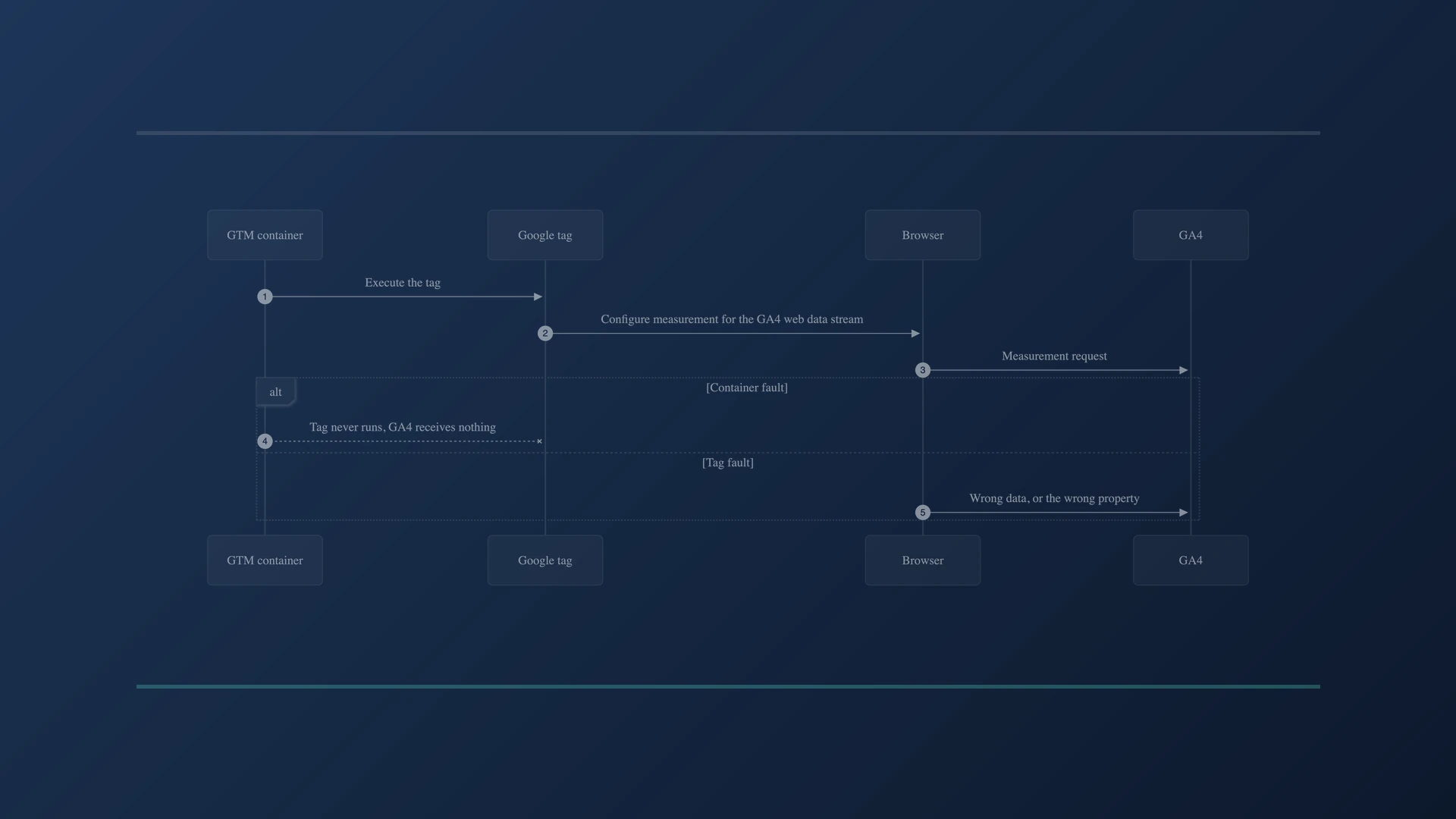
The container and the Google tag do different jobs, and the difference guides debugging. The GTM container manages and executes tags. The Google tag configures data and sends it to Google destinations such as GA4. A container problem stops the tag from running at all. A tag problem lets it run and send the wrong data, or send the right data to the wrong property.
1.10 A page_view event is generated
Under standard GA4 web configuration, a page_view event is collected automatically when the page loads. You do not build a separate GTM tag for it. The Google tag handles it.
The page_view event usually carries parameters GA4 populates on its own: page_location for the full URL, page_title from the page’s HTML, and page_referrer for the URL the visitor came from where one is available. GA4 also associates the event with device, browser, geographic, traffic source, session, and user information it derives during processing.
1.11 Other automatic GA4 events
GA4 collects further events during the same visit without any help from you. session_start fires when GA4 identifies the beginning of a new session, and first_visit when it identifies the visitor as new on that browser or device. Both are automatically collected, so building GTM tags to duplicate them produces double counting.
GA4 also offers Enhanced Measurement, a set of optional automatic behaviors configured on the data stream rather than in GTM. Depending on what you enable, it can collect page views on history changes, scrolls, outbound clicks, site search, video engagement, file downloads, and form interactions.
Which is why a visitor who lands on one page and does nothing rarely produces a single event. A deep enough scroll can produce scroll, and enough time on the page can produce user_engagement, with no interaction and no navigation involved.
1.12 The browser sends measurement requests to GA4
The browser transmits one or more network requests carrying event data to Google Analytics. These requests hold the information that will eventually appear in your reports.
What each request contains depends on your Google tag configuration, the GTM variables you mapped into event parameters, Consent Mode settings, cookie and browser storage availability, browser privacy controls, active ad blockers, custom event parameters, user identification settings, and cross-domain configuration.
Two visitors on the same page can therefore produce requests with different contents, and one of them may produce no request at all if an ad blocker intercepts it. Browser-based measurement is incomplete by nature, which is part of why GA4 applies modeling to estimate what it cannot observe directly.
1.13 GA4 receives and processes the event data
GA4 receives the event data and processes it for use in Realtime reports, standard reports, Explorations, Advertising reports, Audiences, Attribution, and BigQuery exports where that link is configured.
Processing covers attribution, which assigns traffic sources to sessions and key events; sessionization, which groups events into sessions; user identification, which links events to known users where possible; and the application of whatever filters and data settings the property has configured.
A delay separates a request arriving from the data appearing in reports. Realtime reflects activity within seconds. Standard reports and Explorations can take up to 24 to 48 hours to finish processing, and figures for the most recent day or two often move upward as processing completes.
Part 2: When a Visitor Clicks a Button
Page views describe where visitors go. Clicks describe what they do. The chain behind a click runs through different mechanics than a page load, and far more of it is yours to configure.
2.1 The visitor clicks the button
The visitor clicks something visible: Contact Us, Request a Quote, a phone number rendered as a link, a download, Add to Cart, a form’s submit button, Book an Appointment.
The browser generates a native click interaction. Whether GTM notices depends on how the container is configured.
2.2 GTM can observe the click
If a click trigger in your container has enabled GTM’s click listeners, GTM can detect the interaction and expose click-related variables: Click Text for the visible label, Click ID for the element’s HTML id, Click Classes for its CSS classes, Click URL for a link’s destination, Click Element for the element itself, and Click Target for its target window. These are built-in variables, and they have to be switched on in the container’s Variables section before you can reference them.
They are GTM variables, not GA4 event parameters. Sending any of them to GA4 means mapping them into event parameters on your GA4 event tag, and a team that skips that step often believes click tracking is live while GA4 has received nothing.
2.3 GTM creates a click-related internal event
Depending on what was clicked and which trigger type is active, GTM creates an internal event. A trigger listening to all elements produces gtm.click. A trigger listening only to links produces gtm.linkClick.
These events live inside the container so triggers can respond to them. They are not GA4 events, and they never appear in GA4 on their own, which is why seeing gtm.click in the Preview mode log tells you nothing about what GA4 received.
2.4 GTM evaluates the click trigger
GTM tests the click against your trigger conditions. Typical conditions include Click ID equals request-quote, Click Text equals Book Appointment, Click URL contains tel: for a phone link, Click URL contains mailto: for an email link, or Click Classes contains a specific class applied to conversion buttons.
Every active trigger is evaluated against the click. Tags attached to a matching trigger become eligible to fire. When nothing matches, nothing fires.
2.5 The appropriate event tag fires
When the conditions match, GTM fires the tag attached to that trigger. For GA4 that is usually a Google Analytics: GA4 Event tag configured in GTM, which sends a named event to your property.
Where Google publishes a recommended event name for the action you are measuring, use it. generate_lead covers a submitted lead form. sign_up covers account creation. login covers a sign-in. purchase covers a completed order. Recommended events arrive with predefined dimensions and metrics in GA4, so their data surfaces in reports without extra configuration. Custom event names work, but they need manual setup as custom dimensions or metrics before their data becomes reportable.
Plenty of actions have no recommended equivalent. A clear custom name that follows your own convention is the right answer there.
2.6 Event parameters may be included
The event can carry parameters that give the action context: button_text for the visible label, button_id, link_url for the destination, form_id, page_location for where the click happened, content_type, value, and currency. When you send value, send currency alongside it, since GA4 needs the currency to report monetary figures correctly.
Parameters have to be configured deliberately or supplied automatically. GTM does not forward every available click variable to GA4. You choose which variables map to which parameters when you build the tag.
Custom parameters also need registering as custom dimensions or metrics in GA4 before they appear in most reports. They show up in DebugView and Realtime immediately, which makes it easy to assume the job is done when the reporting side is still missing.
2.7 The browser sends the event to GA4
The event tag generates a measurement request from the visitor’s browser to GA4, carrying the event name and the parameters you configured. GA4 receives and processes it the same way it processes page_view.
The event appears in Realtime and DebugView right away, and in standard reports and Explorations once processing completes. One further step is easy to overlook: if the action counts as a key event for your business, mark it as a key event in GA4’s Events settings. Sending the event does not by itself make GA4 treat it as one.
2.8 Not every button click needs a custom GTM event
Before building a tag for a click, check what GA4 already collects.
Enhanced Measurement can collect outbound link clicks and file downloads with no GTM configuration at all, alongside site search, scrolls, video engagement, and form interactions. Adding a custom event that duplicates one of these produces two events for one action, and the resulting numbers look reasonable enough that nobody questions them for months.
Audit what GA4 collects, list what it misses, and build only the difference.
2.9 The visitor completes a business action
Everything above covers the click. A completed conversion runs one step further, and the difference between the two is where lead counts go wrong.
The click on a submit button is not the conversion. The conversion is the confirmation that the action succeeded. Those are separate moments, and measuring the first while calling it the second inflates your numbers with failed validations, abandoned payments, and double submissions.
The success signal comes from one of two places. A confirmation page, where the URL of the thank-you page becomes the trigger. Or a dataLayer push, where the site pushes an event once the server confirms the action completed. The dataLayer route is the more reliable of the two, because a confirmation page URL can be reached by anyone who navigates to it directly, including crawlers.
GTM then fires the event tag: generate_lead for a submitted lead form, purchase for a completed order, sign_up for account creation. GA4 receives it the same way it receives any other event.
One step remains, and it gets skipped often. Sending the event does not make GA4 treat it as a key event. You mark it as one in Admin, under Events. Until you do, it appears in reports as an ordinary event and it cannot be imported into Google Ads.
Part 3: When a Visitor Goes to Another Page
When a visitor moves from one page to another, the measurement system has to register the new page and keep the session intact. How that works depends on how the site is built.
3.1 The visitor activates an internal link
The visitor clicks a navigation link pointing to another page on the same domain: Services, About, Contact, a product detail page, a blog article.
What follows takes one of two shapes, and knowing which one applies to your site changes how you configure and debug page view tracking.
3.2 The next-page behavior depends on the website architecture
On a traditional multipage website, the browser requests a new HTML document from the server. It processes that HTML, the GTM installation snippet runs on the new page, and the published container initializes for it. Some resources come from cache rather than a fresh download, but the sequence matches the first page load. The Google tag fires according to its trigger, and GA4 collects another page_view automatically.
On a single-page application, the browser may never request a new HTML document. JavaScript replaces the displayed content and updates the browser history or the URL. GTM does not reload the way it does during a full page load. GA4’s Enhanced Measurement can collect a page_view when browser history changes, though that depends on how the application handles routing and on the enhanced measurement settings for the data stream. Some single-page applications need custom GTM configuration, typically a History Change trigger paired with a GA4 event tag, before page views record reliably.
3.3 GA4 processes the second page view
GA4 associates the second page_view with the same user and session as the first where it can, then updates the session record.
That association is what makes multi-page reporting possible. GA4 can then report Views, Users, Sessions, Landing pages, Page paths, and Engagement, and Explorations can trace path sequences across a visit. Where the association fails, commonly across domains with no cross-domain measurement configured, or where cookies were cleared mid-visit, one visit splits into two sessions with two landing pages, and attribution follows the split.
Part 4: Where the Data Goes Next
GA4 is not the last stop. Two other Google properties sit next to it, and the relationships work differently enough that mixing them up produces reports nobody can reconcile.
4.1 GA4 to Google Ads: key events become conversions
When a visitor clicks a Google ad, auto-tagging appends a gclid parameter to the landing page URL. GA4 reads that parameter and attributes the session, and anything the visitor does during it, to the campaign, ad group, and keyword that produced the click.
With the GA4 property and the Google Ads account linked, eligible key events can be imported into Google Ads as conversions. Google Ads then uses them for conversion reporting, for Smart Bidding, and for building audiences.
Two conditions govern what crosses over. The accounts must be linked, and the event must be marked as a key event in GA4. An event that GA4 collects perfectly well will not appear in Google Ads until both are true.
4.2 Search Console sits outside the chain entirely
Search Console involves no tag, no container, and no code on your site. Googlebot crawls your pages, Google Search serves them in results, and Google’s own infrastructure records the impressions, clicks, queries, and average positions. None of that data passes through your browser, your GTM container, or your GA4 property.
Linking Search Console to GA4 makes Search Console reports visible inside the GA4 interface. That is the whole of what the link does. No event data flows from Search Console into GA4, the two datasets are never joined at user or session level, and nothing you configure in GTM affects Search Console in any way.
This explains a question that comes up in most reporting reviews. Search Console clicks and GA4 organic sessions never match, and they are not supposed to. Search Console counts clicks on a search result. GA4 counts sessions that started, which requires the page to load and the tag to fire. Between the click and the session you lose visitors who left before the page finished loading, visitors running ad blockers, and visitors who declined consent. Search Console also withholds low-volume queries for privacy, so its query totals will not sum to its own click totals either.
Closing
The path from a visitor’s first request to a number in a report crosses several systems. The browser asks for a page. The server answers. GTM loads and evaluates its triggers. The Google tag fires and initializes measurement. Events generate, transmit, and process. Underneath all of it, configuration written by someone at some point decides whether any of it is right.
Following that path does not require you to write code. It requires knowing the order: what happens first, what depends on what, and where to look when a number will not reconcile.
Turning that knowledge into a setup that stays accurate is a separate discipline with its own document. Analytics Implementation Workflow covers it in nine steps: decide what to measure before building anything, audit what already exists, write the spec before opening the container, test before publishing, and maintain the setup after it ships.
Every gap in a GA4 report has a cause sitting somewhere in this chain. Knowing the chain is what turns “the data looks wrong” into a specific question with a findable answer.
Questions people ask
How does Google Tag Manager work?
GTM works in two stages. An installation snippet in the page head requests your published container from Google’s servers, and what comes back is the container itself: your tags, triggers and variables. The container then watches for events and decides which tags run. The container never sends data to GA4; the browser does.
Does the GTM container send data to Google Analytics?
No. The container decides which tags should fire. The Google tag then assembles a measurement request and the browser sends it to GA4. This distinction matters when debugging, because a container that loads correctly can still result in nothing reaching GA4.
Why do my GA4 numbers not match my server logs?
Browser-based measurement is incomplete by design. An ad blocker, a declined consent banner, a browser privacy control or a visitor leaving before the tag fires all produce a visit your server sees and GA4 does not. GA4 applies modeling to estimate part of the gap, and no configuration closes it entirely.
What is the difference between a conversion and a key event in GA4?
They are the same idea with different names in different products. GA4 renamed conversions to key events in 2024. Google Ads still reports conversions. A GA4 key event and a Google Ads conversion action are two separate records in two separate products, not one object that moves between them.
Why does a new GA4 event show almost no data over 90 days?
Derived events, custom dimensions and key-event markings all apply forward only and never backfill. An event created three weeks ago will show almost nothing across a ninety-day window, which looks identical to a broken tag. Check the creation date before concluding anything is wrong.
How long does it take for data to appear in GA4 reports?
Realtime reflects activity within minutes. Standard reports and Explorations can take 24 to 48 hours to finish processing, and figures for the most recent day often move upward as processing completes. Check a new configuration in Realtime or DebugView rather than waiting for standard reports.
Does GA4 have a bounce timer?
No. GA4 measures engagement and derives bounce rate as its complement, so bounce rate and engagement rate always sum to 100. A session is engaged if it lasts over ten seconds of engaged time, or records a key event, or records two or more page views. The ten seconds is a ceiling, not a waiting period.
Where to go next
Every term used here is defined in the Google Analytics Glossary. For how search visibility works alongside measurement, see The Complete GEO Playbook for 2026 and the Technical SEO Audit Checklist.
If your numbers do not reconcile and you would rather have someone else find out why, that is what WebGrow does.